 Support on Ko-fi



Profile: reminders, sync and install
The Profile tab is where you manage your villages and decide how ClashClock reaches you, which devices share your data and where the app lives. After this chapter you can get a notification when an upgrade finishes, even with the app closed, sign in to sync, keep a backup and install the app.
On this page
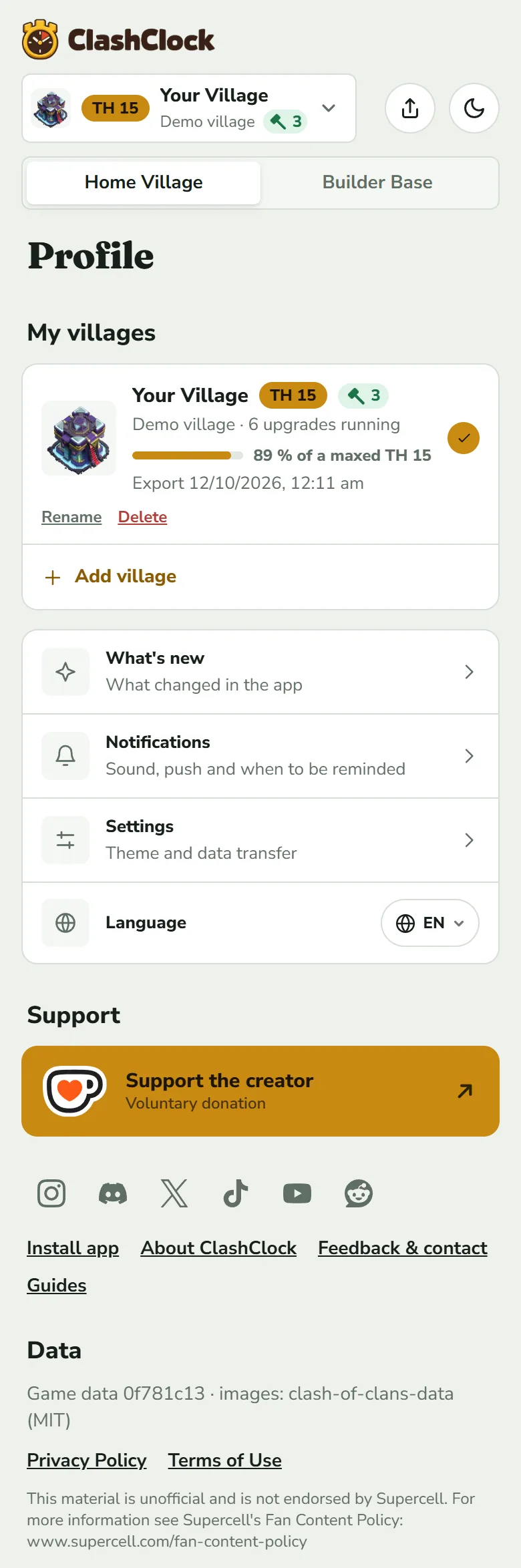
What the Profile tab holds
Nothing here is required: ClashClock tracks and plans without an account, a notification or an installed app.
- My villages: one row per saved village, with its progress to max and last import. Tap a row to make it the active village. The Home Village | Builder Base switch in the header decides whether rows show the Town Hall or the Builder Hall.
- What's new opens the release notes, with a New badge for an update you have not read.
- Support holds the Ko-fi button, the social links and shortcuts to Install app, About ClashClock, Feedback & contact and Guides.
- Data names the game data in use (see How ClashClock works) and links the Privacy Policy and Terms of Use.
Language, theme, time format and time zone
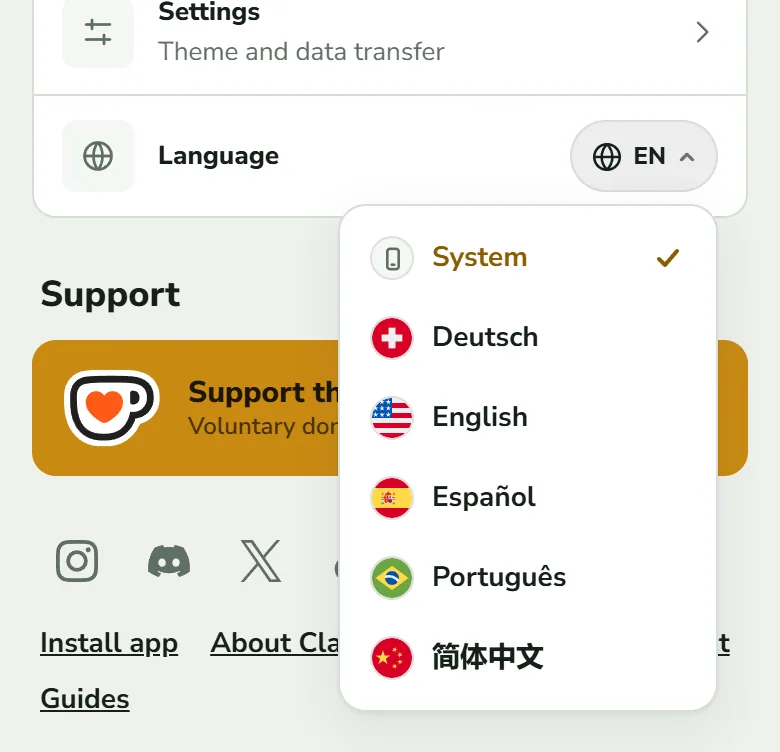
System follows your device's language; the others are Deutsch, English, Español, Português and 简体中文. The language also sets the wording of your reminders. The moon button in the header switches between light and dark without opening Settings.
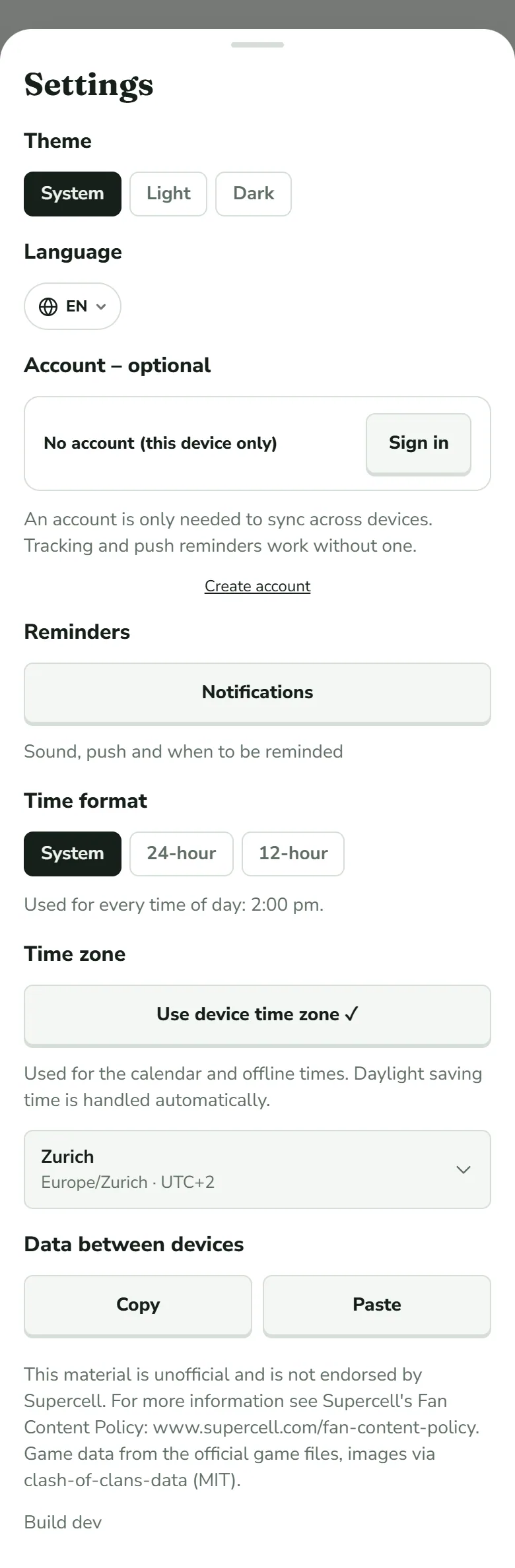
Time zone starts on Use device time zone; pick another zone and it stays until you tap that button again. Finish times, the Plan's calendar and your offline hours follow it.
Reminders
What you are reminded of
ClashClock tells you when a running upgrade is about to finish, when it has finished, and when a helper or the Clock Tower is ready again, in the Home Village and the Builder Base of every saved village.
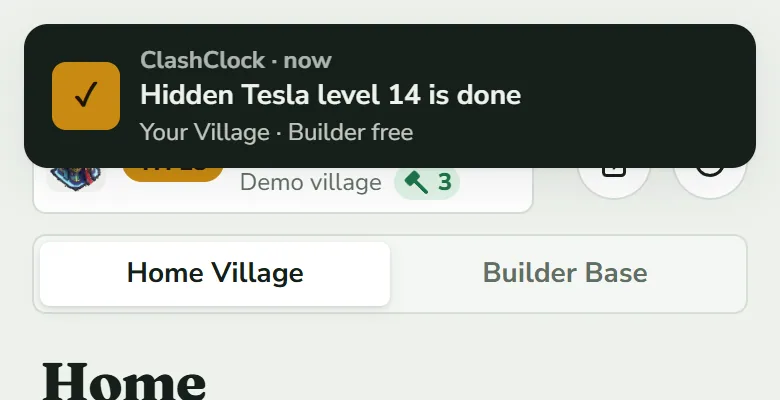
With ClashClock open, a reminder appears as a message at the top with a chime, and as a system notification once your browser allows it. Each upgrade has its own choice under Reminder in its sheet (Home and Base); a crossed-out bell on a row means it is off. Any head start except when finished gives two messages, one before the finish and one at it.
The Notifications sheet
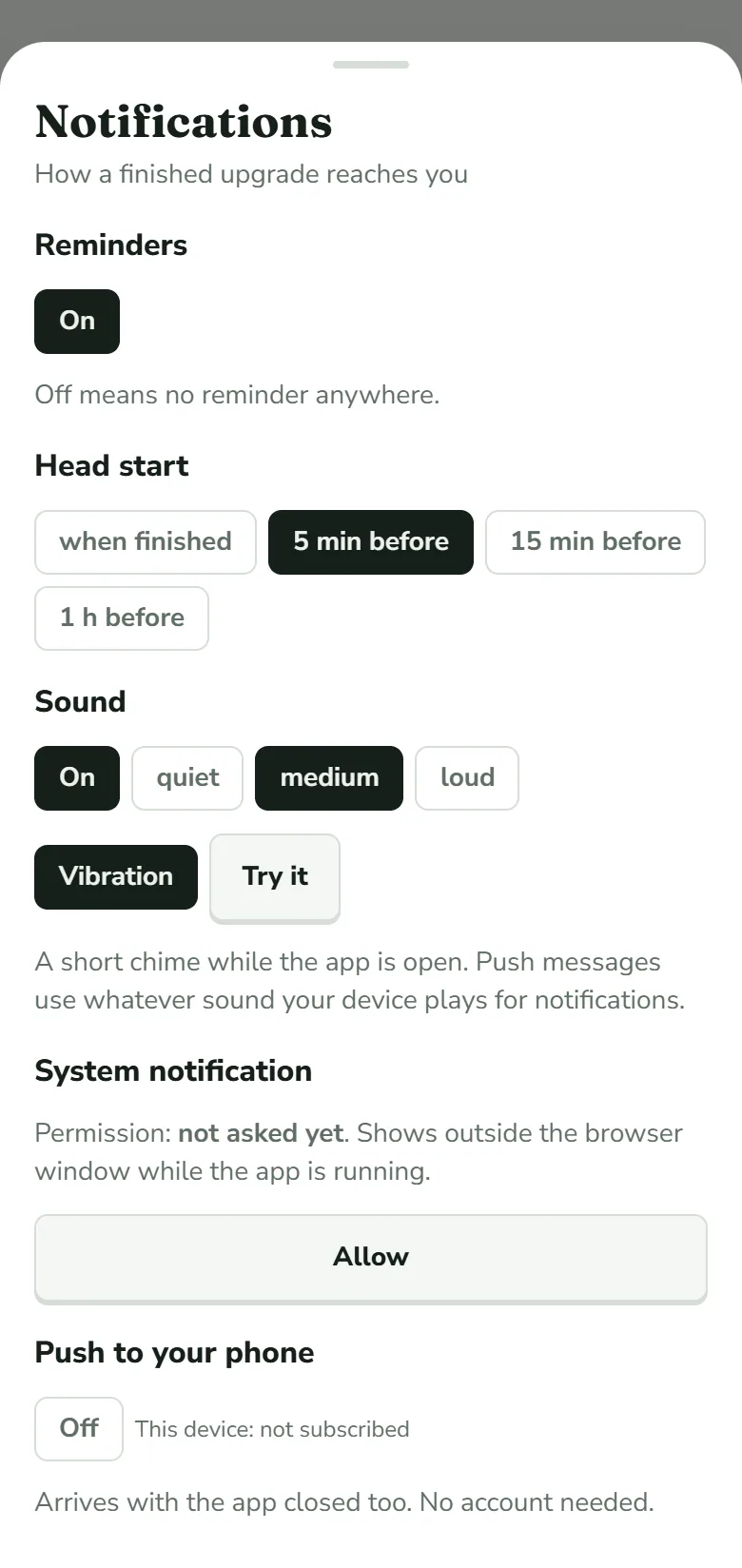
- Reminders: the master switch. “Off means no reminder anywhere.”
- Head start: the default for every upgrade you have not set yourself; 5 min before at first.
- Sound: a chime while the app is open, quiet, medium or loud. Vibration is for phones and tablets; Try it plays a sample.
- System notification: shows the browser's Permission (granted, denied, not asked yet, not supported). Allow asks the browser. A refusal can only be undone in the browser, under the lock icon next to the address.
Reminders with the app closed
Switch push on
Under Push to your phone, tap the switch. If you are not signed in, a security check comes first (“No account or email needed”). Complete it, then tap Enable push.
Allow notifications
Your browser asks whether ClashClock may send notifications. Allow it. “Push is on” confirms, and This device reads subscribed.
A push reaches you only when all of this holds:
- This device is subscribed. Each device needs its own subscription: a second phone says not subscribed until you switch push on there.
- ClashClock knows the upgrade. The server holds only what the app last wrote: the reminders due in the next seven days, rewritten a few seconds after every change while the app is open. An upgrade you start in the game and never log here gets no push.
- On an iPhone or iPad, the app is installed. Push there only works once ClashClock sits on the home screen and you open it from there (install).
With the app installed and push on, the open app shows only its own message, so nothing is announced twice.
What the server holds, and how to switch it off
Push stores your browser's push address and keys, your browser identification and the text and time of the reminders still ahead; those sentences name the building and the village. Without an account it all hangs on an anonymous ID made for this device, with no email. The privacy policy is the binding text.
- Switch Push to your phone off: this device's subscription and every reminder not yet sent are deleted. A guest ID without push that goes unused is deleted after 30 days.
- Switch Reminders off, or set one upgrade to Off in its sheet.
- Sign out also removes this device's subscription.
- To have an account and its stored data deleted, write to me through the Support page (topic Other) or by email, and give the email address of the account; the form fills it in when you are signed in.
Account and sync
An account does two things. It keeps your villages, plans and settings in step across devices, and it lets ClashClock read your heroes, laboratory research, pets, equipment and hall levels from the game's official API, once a day and on Update now (what the API adds). The account stores one document that row level security restricts to your own account.
Open the form
Go to Profile → Settings → Account – optional and tap Create account, or Sign in if you have one. The form opens as its own page.
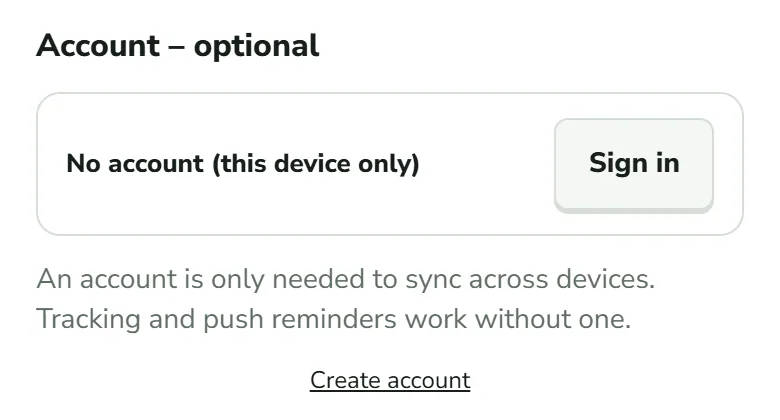
Sign in is the button, Create account the link under the sentence. Fill it in
Enter your email and a password of at least 6 characters (“No extra rules”). Complete the security check and tap Create account.
Confirm your email
Check your inbox: open the email from ClashClock (look in spam too), follow its link and tap Confirm email address. Resend email works after a minute. Until you confirm, sync stays off.
Open your tracker
“Your account is ready.” Open my tracker starts sync. Forgot password? on the sign-in page sends a reset link.
The question on your first sign-in
If this device and the account both hold villages, ClashClock stops and asks Two versions found. You must choose, and the box cannot be dismissed:
- Keep this device: the villages here replace the ones in the account.
- Keep the account: the account's villages replace the ones on this device.
Nothing is merged, because two copies of one village would muddle the timers. You are asked once per device, and again for another account. If only one side holds villages, nothing is asked. The demo village counts as a village, so delete it under My villages before you sign in.
What syncs, and when
- Synced: every village with its timers, plan and reminder choices, the active village, and your settings.
- Not synced: this device's push subscription, the browser's permission and the sign-in itself.
- When: a change goes out about two and a half seconds after your last edit. Other devices pick it up when ClashClock starts there, so reopen the app. There is no sync indicator.
- Two devices at once: the one that saves second shows Overtaken by another device and takes over the other's version, so its own last change is lost.
Sign out replaces Sign in in Settings, next to your email. It stops syncing and removes this device's push subscription; your villages stay on the device.
Back up and move your data
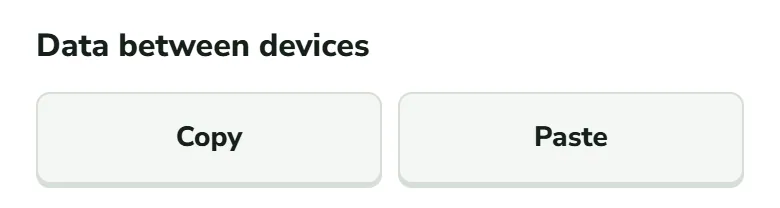
Copy puts all your app data on the clipboard as text: every village with its plan and reminder choices, and your settings. If the browser blocks the clipboard, it shows the text in a box instead. The game's export starts a village; Copy keeps the plans no export contains.
Paste asks for the text in a browser box (“Paste app data:”). A wrong text gets “That was not ClashClock app data”; a good one replaces everything here and closes the sheet.
My villages
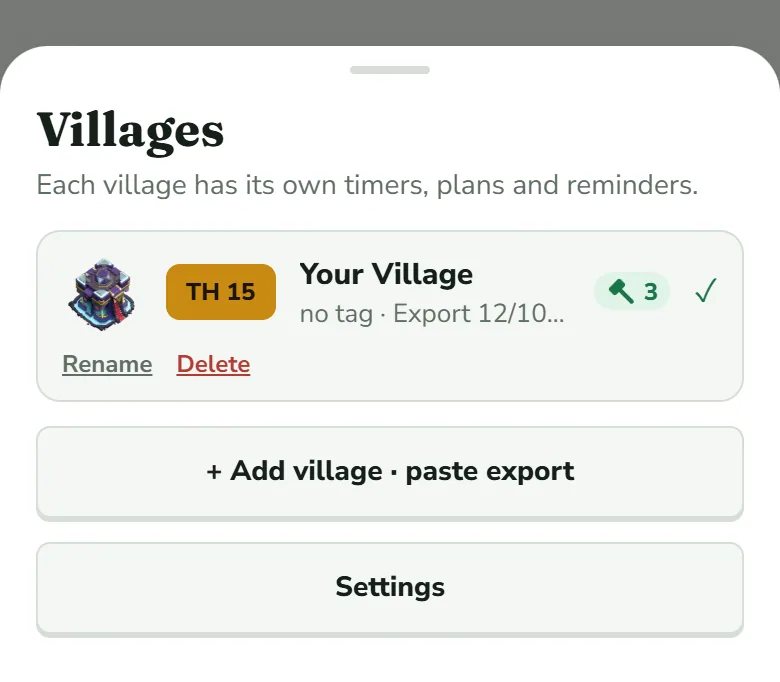
- Rename opens a field for up to 40 characters. Save or Enter keeps the name, Cancel drops it.
- Delete asks “Delete ‘Name’ with all its timers?”. Yes, delete removes the village with its plan and reminder choices, with no undo, and with an account from the account too.
- Add village on Profile, or + Add village · paste export in the sheet, adds another (Import your village).
Install the app
Installing puts an icon on your home screen or desktop and opens the tracker in its own window. The steps for iPhone, Android and computers, and what to expect afterwards (offline use, updates, where your villages live), are on Install ClashClock.
In the app itself, two things change. Launched from the icon, ClashClock opens on the tracker instead of the website's front page. And on an iPhone or iPad the installed app is what makes push reminders possible (see Reminders with the app closed, above). Because your villages live in the browser or app you used, sign in or use Copy (see Back up and move your data, above) before you move to the installed app.
Common questions
I got no reminder
- Reminders is On and the upgrade's sheet does not say Off (no crossed-out bell).
- For a push, This device reads subscribed and ClashClock knew the upgrade when you last opened it.
- In the open app, an upgrade that finished more than six hours before you opened ClashClock gets no message. Home shows it as Done.
I get two notifications for one upgrade
That is the head start: one message before the finish and one at it. Choose when finished under Head start to keep only the second.
Push could not be switched on
The message says why: notifications are denied, the browser cannot do push, the security check or the connection failed, or the day's new guests are used up (“No new guest spots today. Sign in or try tomorrow.”). Denied is undone in the browser's settings.
Next, learn why a timer can differ from the game and how to correct it.
When a timer looks wrongTry it on your own village
Paste your village export and everything in this guide works on your own builders, timers and plan. It is free, needs no account and runs in the browser.
Useful? Help keep ClashClock running.
ClashClock is built and run by one person. Support on Ko-fi pays for the hosting, the database and the reminders it sends.