 Support on Ko-fi




Gold Pass, potions and magic items
After this chapter you know which boosts ClashClock can see and which ones you must tell it about. You can set the Gold Pass, log potions, plan books and hammers and enter events, so the dates on the Plan tab match your game.
On this page
What ClashClock knows, and what you tell it
Your export lists levels, running timers and helpers. It says nothing about the Gold Pass, potions, snacks, books, hammers, gems or medals. You enter those.
| What | In your export? | Where you enter it |
|---|---|---|
| Levels and running timers | Yes, as of the export | Import again to refresh |
| Helper levels and cooldowns | Yes | Home → Helpers, when you use one |
| Gold Pass and its boosts | No | The Home card, or Plan → Forecast |
| Potions and snacks | No | Home → Potions & snacks |
| Books, hammers, medals, gems | No | Plan → Forecast → Magic items |
| Events | No | Plan setup → Events, workers and gems |
The Gold Pass
Answer the card on Home
The card named Gold Pass asks whether you play free-to-play or with the pass. Tap Gold Pass or F2P (free). The card stays on Home until you answer. Each village has its own answer, since a pass belongs to one game account.
Or use the Forecast row
In Plan → Forecast, the top row has the same two choices. Its second line says what the pass is worth: ClashClock plans twice, with and without the pass, and shows the gap in the lead date. If you play free, it compares with a pass bought now and renewed every season.
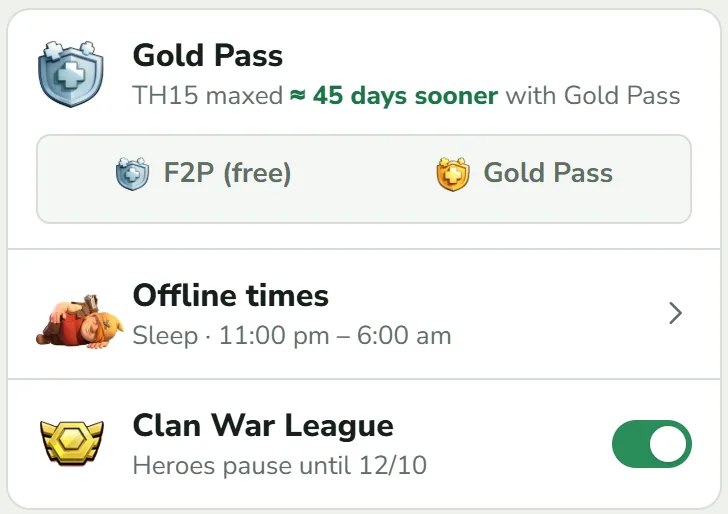
Neither side of the switch is lit because the question has not been answered. Afterwards one side is.
What the pass does to a step
The Builder Boost cuts the time and price of building and hero upgrades by the same percentage, in both villages. The Research Boost does the same for the Laboratory and Pet House. ClashClock rounds as the game does. By the length before the boost, under 30 minutes rounds up to the second, up to a day rounds down to a whole 10 minutes, and longer rounds down to the hour. The price rounds up.
| Upgrade before the boost | Boost | Time after |
|---|---|---|
| 20 min | 20 % | 16 min |
| 1 d | 10 % | 21 h 30 min |
| 4 d | 20 % | 76 h |
When the percentages arrive
You do not get 20 % on the day you buy. The boosts are rewards on the season track: points add up through the month, counted from the start of the season even if you bought the pass later. A season is a calendar month and turns over on the 1st at 08:00 UTC. ClashClock cannot read your points, so it assumes 2,500 over 30 days and the wiki's April 2026 table.
| Boost | 10 % | 15 % | 20 % |
|---|---|---|---|
| Builder Boost, days after the season starts | 1.0 | 7.7 | 12.7 |
| Research Boost, days after the season starts | 0.1 | 7.0 | 12.0 |
Enter your own levels
- With the Gold Pass on, tap Settings under the pass row.
- Switch off Normal pace.
- Set Builder Boost and Research Boost to what your game shows: 0 %, 10 %, 15 % or 20 %.
Your levels win for the rest of the season. Higher levels still arrive on schedule, but no sooner than two days after you set yours. Lines under the controls list what is coming, such as “14 Oct: Builder Boost −20 %”.
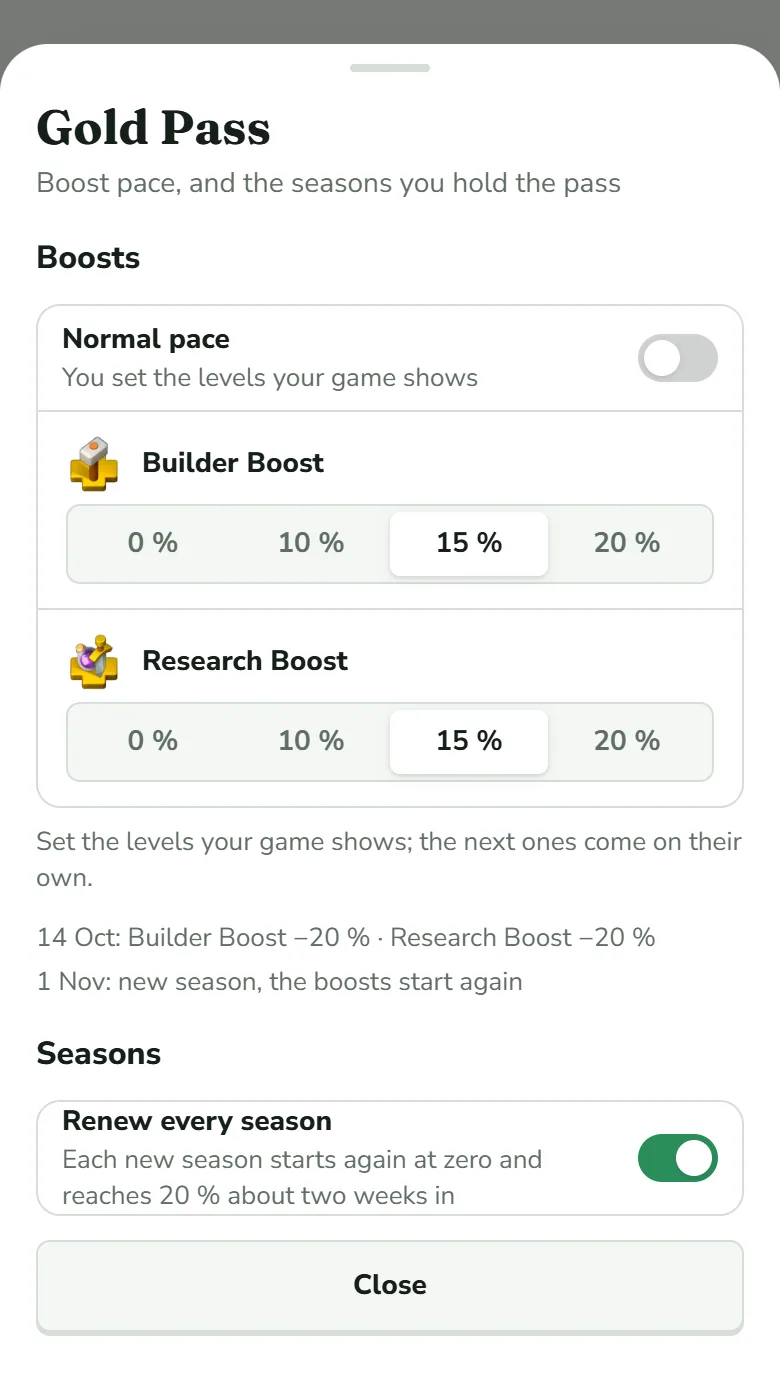
Seasons you hold the pass
Renew every season is on by default for a Gold Pass. Switch it off to list the seasons you hold with Add seasons. On F2P the same sheet is “Plan a pass for later”: add the seasons you intend to buy, say the month of a Hammer Jam, and the plan counts the boosts only then.
What it is worth: how many days the Gold Pass saves at each Town Hall, about 5.5 days a season on the road to a fully built next Town Hall.
Potions
| Potion or snack | Speeds up | Speed | Lasts |
|---|---|---|---|
| Builder Potion | Home Village builders | 10× | 1 h each |
| Research Potion | Laboratory, not the Lab Assistant | 24× | 1 h each |
| Pet Potion | Pet House | 24× | 1 h each |
| Builder Bite (snack) | Builders, not the Apprentice | 2× | 1 h |
| Study Soup (snack) | Laboratory and Pet House | 4× | 1 h |
Log what you drank, on Home
Open Potions & snacks
On Home, tap Potions & snacks. The tabs are Potions and Snacks. Tap a potion to set how many are In storage.
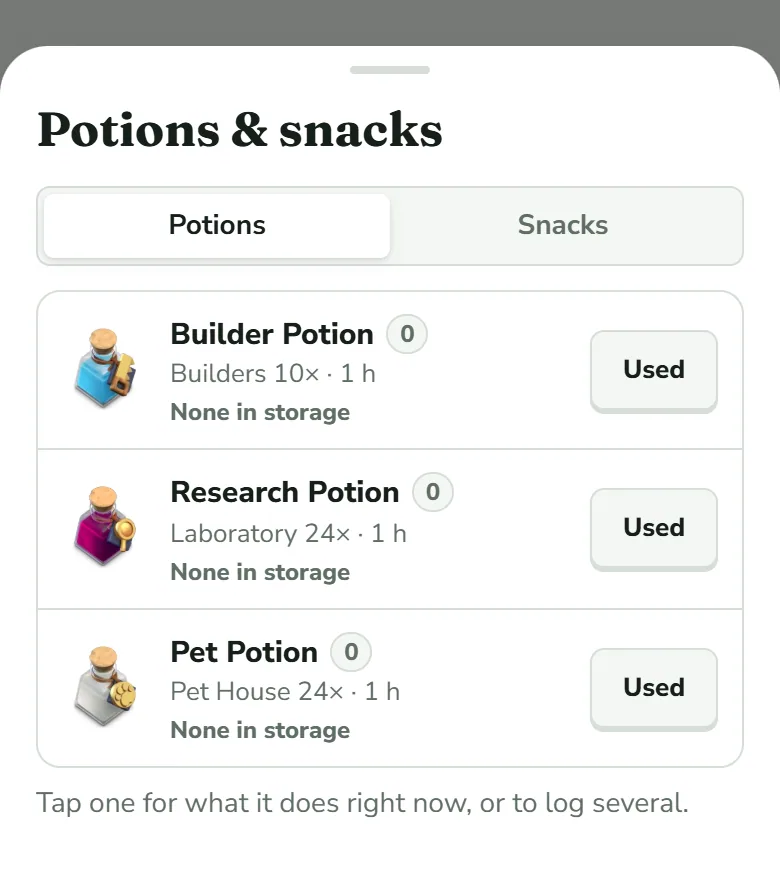
Tap a row for what a potion would do right now. Log a use
Used logs one. Open a potion to set How many and Started (just now, 15 or 30 minutes ago) and tap Used ×N in the game. The sheet shows each running upgrade's finish time before and after.
While it runs
A green strip under Home's big number shows the time left, with +1, Remove boost and Adjust time. ClashClock moves the running upgrades' finish times to match the game.
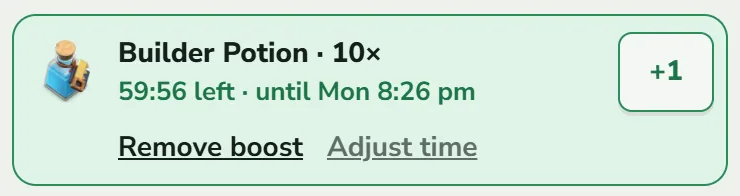
+1 logs one more potion of the same kind. Remove boost takes the boost out again, and Adjust time takes the time your game still shows. Tap the name to open the potion's sheet.
Let the plan place potions
In Plan → Forecast, tap Magic items. Under How many, set In storage for each potion and, to plan a purchase, its Buy rows. Then choose When:
- Smart: “The plan picks the moments that leave the least idle time.” It is a search: for the next seven days, or the Hammer Jam if you entered one, it tries a handful of moments when you are online and a worker of that kind starts a step. For each moment it plans the days that follow with one potion or a few together, and keeps the choice that costs the least idle time per potion.
- My times: tap Add a time, pick the potion and How many, then Now or At a time. The sheet lists what is left over (“2 × Builder Potion not placed”), and Smart allocate hands it back to the plan.
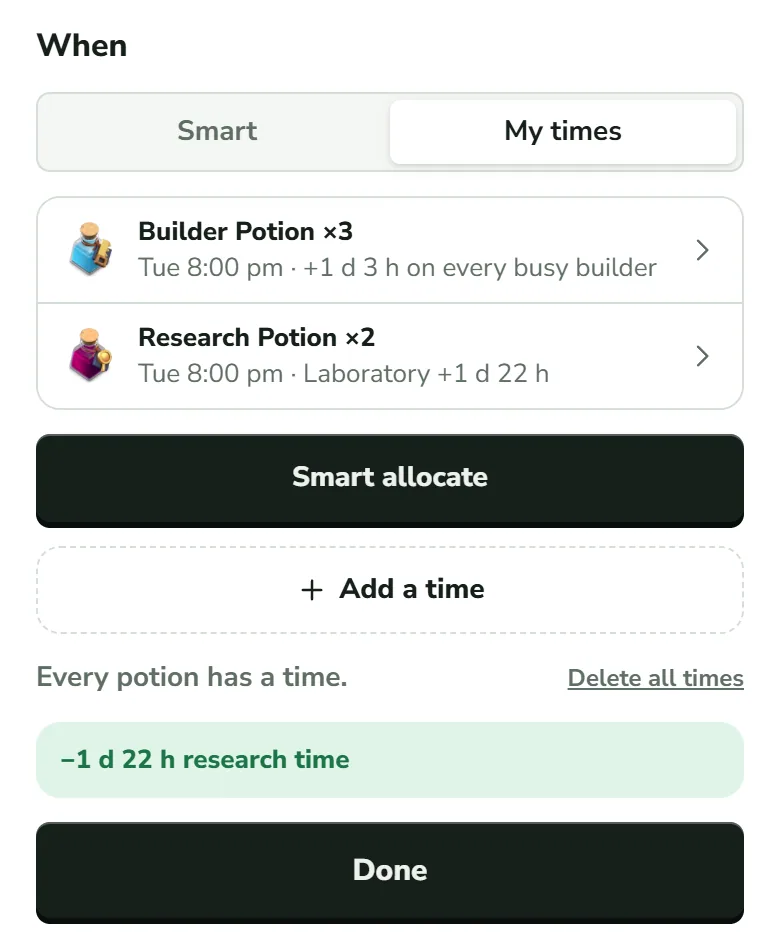
The Forecast row then reads “≈ N days sooner”, or, when no date moves, the time taken off the upgrades. On the timeline a potion's picture marks its moment (a number when several), a tinted band covers the workers it speeds up, and a green “−18 h” on a step is the time potions take off it. The queue has a green row for each potion. Only the Home Village plans potions.
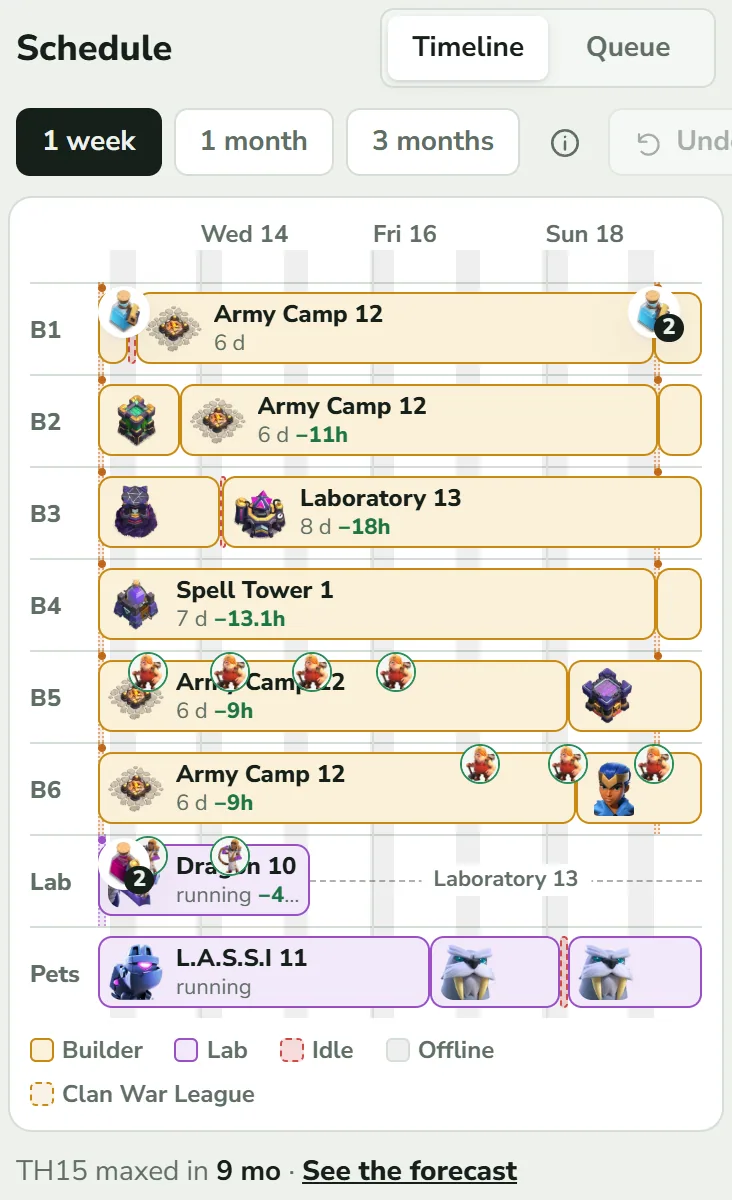
When the plan wants a potion this minute, a Use now card with Used it and Not now appears on Home and at the top of Plan. Tap a potion's picture for its sheet: what it saves, Used it, Change time or number, Potion settings and Take out of the plan. With a mouse you can drag the picture to another hour; it never lands in your offline time. Under Smart, moving one turns the plan's other moments into your own times.
Medals, gems and prices
The top of the Magic items sheet holds three purses: Your league medals (Max 2,500), Your Raid Medals (Max 5,000) and Gems you have. The two medal purses show what the plan has spent and what is left. The gem purse shows what the plan spends, in a line such as “0 in the plan”, and what is left once you type a balance. A Buy row under an item plans a purchase, and what you plan to buy counts as owned.
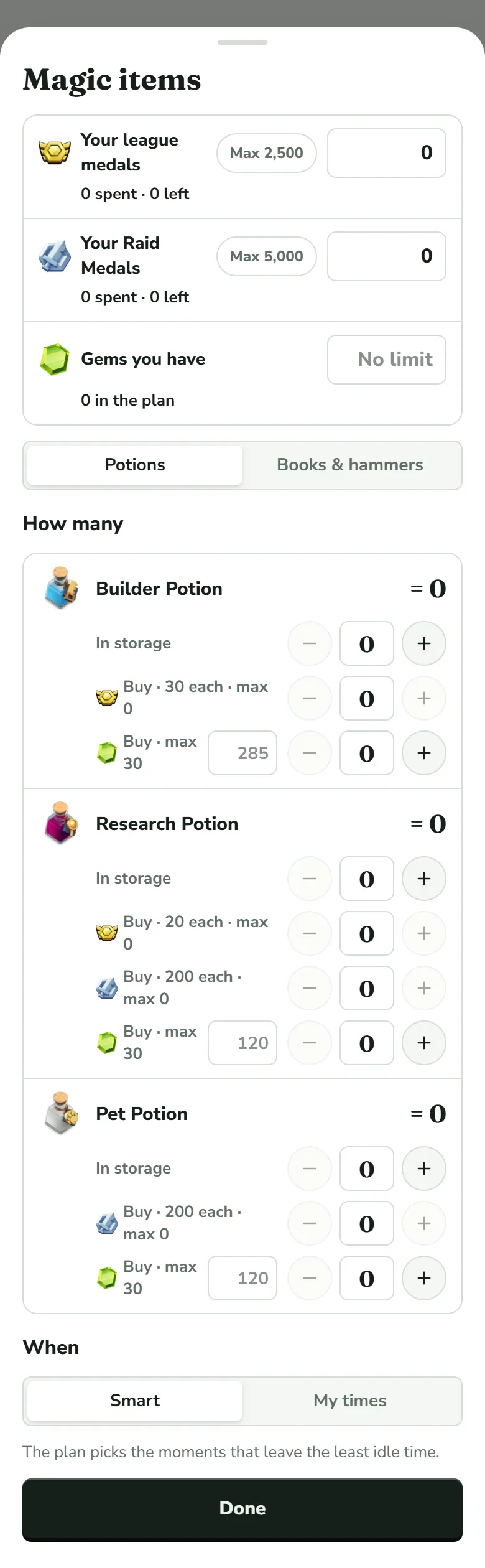
| Item | League medals | Raid Medals | Gems |
|---|---|---|---|
| Builder Potion | 30 | not sold | 285 |
| Research Potion | 20 | 200 | 120 |
| Pet Potion | not sold | 200 | 120 |
| Hammer of Building, Fighting, Spells | 120 | not sold | not sold |
| Hammer of Heroes | 165 | not sold | not sold |
| Book of Building, Fighting, Spells | not sold | not sold | 925 |
| Book of Heroes | not sold | not sold | 500 |
Finishing an upgrade with gems
Your gems are one account in the plan, and only for the Home Village. The potions and books you plan to buy, the Goblin hires and the upgrades you finish with gems all draw from it in time order, so a purchase never uses gems that an earlier one already took.
Enter your gems
Open Plan setup → Events, workers and gems and find Gems. Gems you have is your balance, which the export does not carry. Spend at most is an optional cap. Both read “No limit” while empty. The Gems you have purse in Magic items is the same number.
Pick the upgrade
In that sheet, tap Finish an upgrade under Finish with gems and choose the step under Upgrade. Or open the step itself (the step sheet) and tap Finish an upgrade on its Finish with gems row.
Choose when
Under When, At the start spends the gems as the step starts, or now for an upgrade that already runs. At a time spends them at the moment you give. Either way the upgrade is over from then and its worker is free. The price follows what is left of the upgrade at that moment, after the potions, helpers and events that have already worked on it. Tap Save. Delete on the step's row, or the cross beside it in the sheet's list, takes a finish back.
What it costs, at the bottom of the Events, workers and gems sheet, lists every spend and splits the total into Goblin hires, Finishes and Potions. It says how many gems are left of your balance, or “No balance entered: this is what the plan asks for”. A spend the balance cannot cover at its moment is left out of the plan, and the line “Short by … on …” names it. With and without the gems shows how much sooner your goal comes and which steps move.
Books and hammers
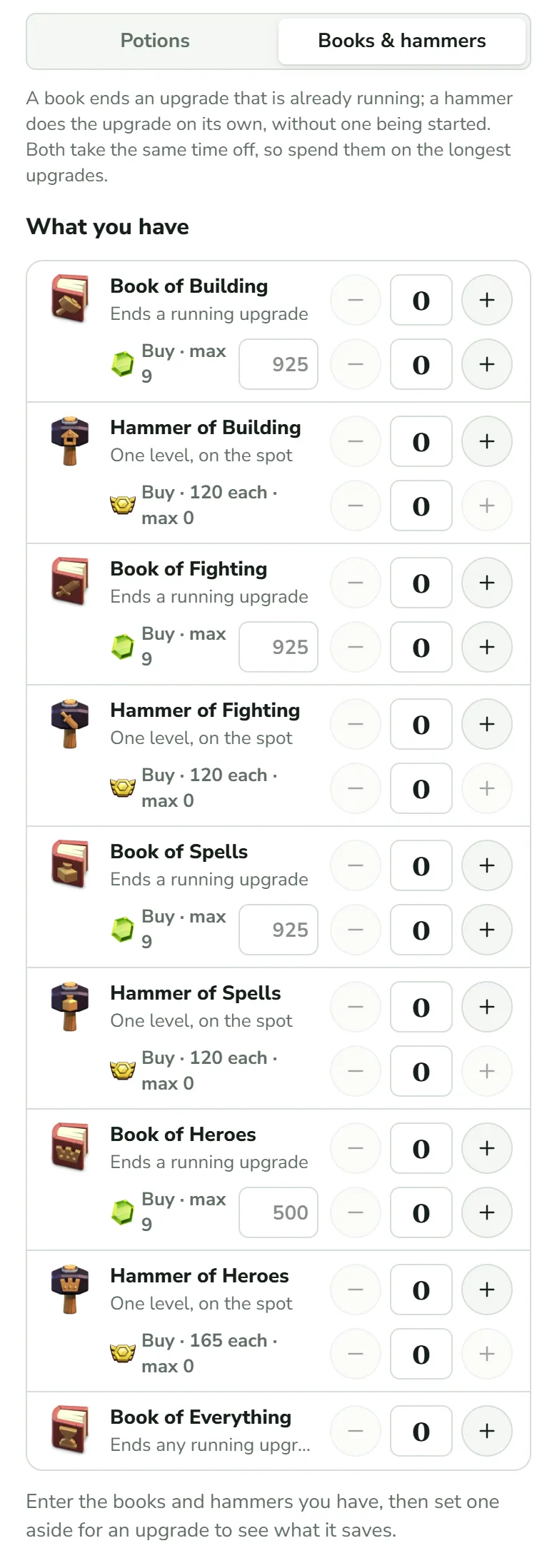
A book ends an upgrade that is already running. A hammer does one level on its own, with nothing started. Both take the same time off, so spend them on the longest upgrades. In the Magic items sheet, open Books & hammers: What you have takes your counts, and Best targets lists where each would save the most, with Plan Book for a step still to come or Use Book for one already running. A step with an item is “instant” in the plan, marked by a small round badge on the timeline. Nothing is spent until you really use it.
Events you enter
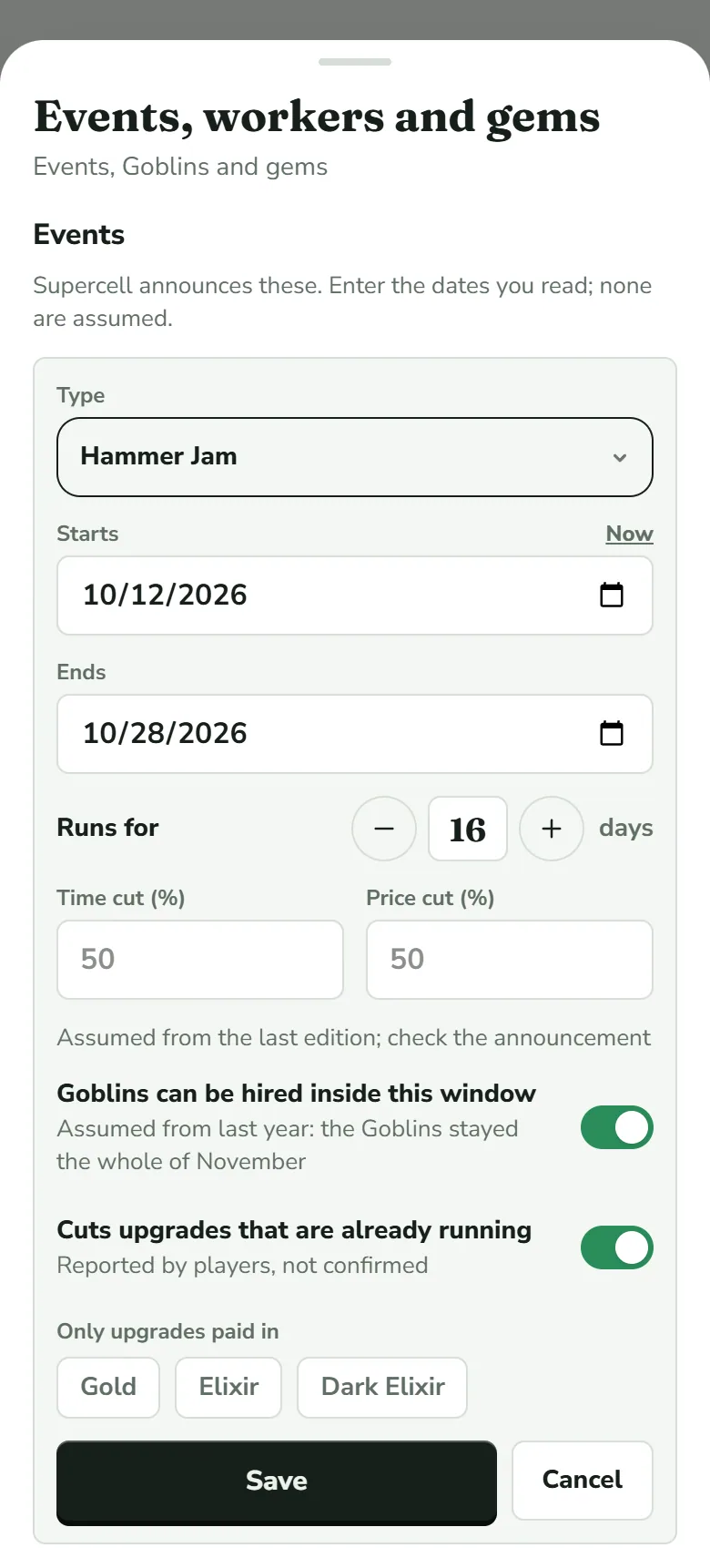
Every Hammer Jam has differed, so ClashClock never assumes a date. Enter the one you read in Supercell's announcement: Plan setup → Events, workers and gems → Add an event. Set Starts (Now is one tap) and Ends, or Runs for a number of days. Events begin and end at 08:00 UTC.
- Work for Hire! changes no time or price. It is the window in which the Goblin Builder or Goblin Researcher can be hired to do one upgrade for gems, once every regular worker is busy.
- Hammer Jam starts from the last edition: half the time and price in the Home Village, Supercharges and Crafted Defenses left out, running upgrades cut at the start. The sheet marks these as assumed, and Time cut (%), Price cut (%) and the rest can be overwritten.
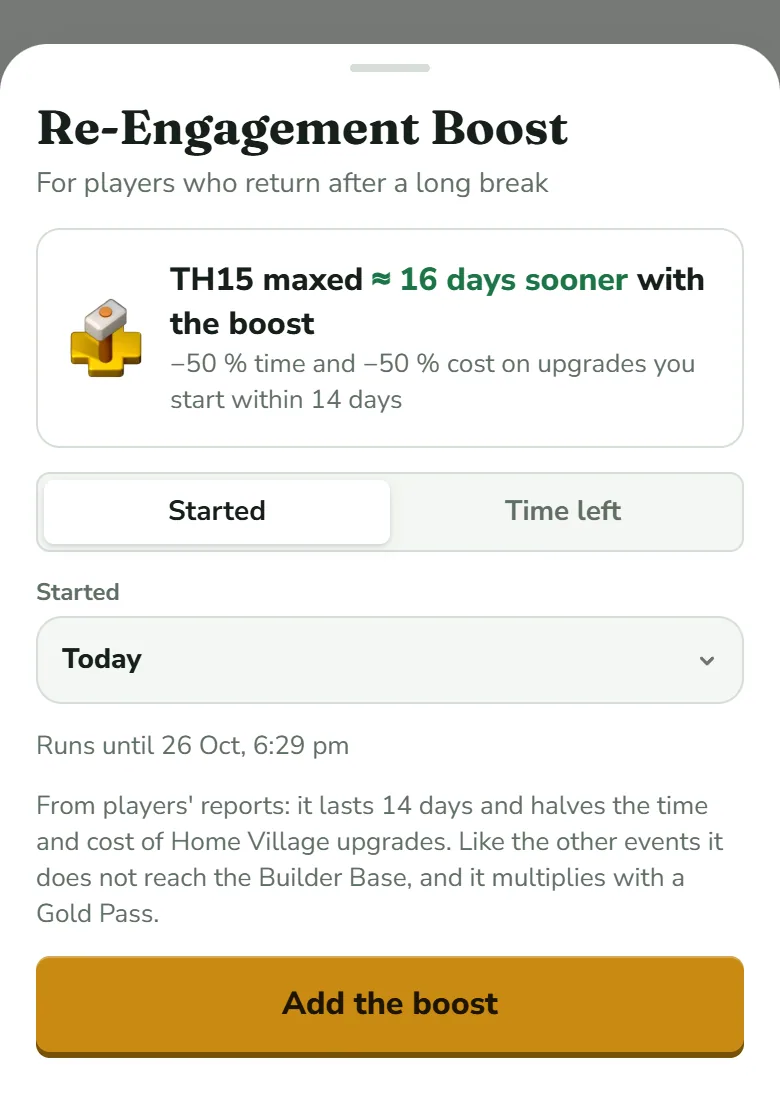
- Re-Engagement Boost is, as players report, half the time and price for 14 days in the Home Village, for players back after a long break. Open it from the button of that name on the first-visit card or from Plan setup → Re-Engagement Boost. Enter either Started (today, yesterday, or days ago) or Time left, as your game shows. The sheet tells you how much sooner it makes your date.
- Other event has a name and your own cuts.
A step that starts inside the window gets its time and price cut at its start and keeps the cut after the window ends. The Gold Pass multiplies on top, as players report: 50 % and 20 % leave 40 % of the time. With a Hammer Jam entered, Smart offers Use during the Hammer Jam, which keeps every potion for it, because each hour of work there is worth two. If two events overlap, ClashClock counts only the better one for time and for price. No case of two upgrade events at once is known, so that is a cautious choice, not a verified rule. Events show on the timeline as dotted bands.
Helpers, briefly
The Builder's Apprentice and the Lab Assistant each work one hour a day and add as many hours of work as their level. The planner sends each once a day to the running upgrade whose shortening frees its worker earliest in your online time, drawn as a round portrait. With a mouse you can drag the portrait to another running upgrade. Cards and cooldowns: Home and Base: timers and buildings.
Common questions
The game shows an earlier finish than ClashClock
Does the Gold Pass percentage match your game (Normal pace is only an assumption)? Did you use a potion, snack, helper or book since the export, or export during a boost? Log what is missing, correct the timer with Adjust remaining time, or import again once the boost has run out. When a timer looks wrong goes through it.
I own potions, but the plan does not use them
The plan only uses what you entered. Set In storage under Plan → Forecast → Magic items.
Open the demo, add a few potions under Plan → Forecast → Magic items, and watch the dates move.
Open the demo villageTry it on your own village
Paste your village export and everything in this guide works on your own builders, timers and plan. It is free, needs no account and runs in the browser.
Useful? Help keep ClashClock running.
ClashClock is built and run by one person. Support on Ko-fi pays for the hosting, the database and the reminders it sends.